Email workflows and runtime checks
Email work is not finished when a sender is configured. Review the runtime workflows that send invitation, verification, recovery, and account emails so users receive the right message at the right time.
Configure a workflow
- Open Products > Email > Automation. On a phone, choose Automation from Email section.
- Choose a workflow from the Workflow selector. Workflows are grouped by category, with those needing attention grouped first.
- In Workflow, select a step or a connecting path to open its settings. You can also select a step and choose Step settings.
- Change the sender, timing, or active state where the selected workflow allows it.
- Select Save workflow. Closing the settings drawer does not save changes.
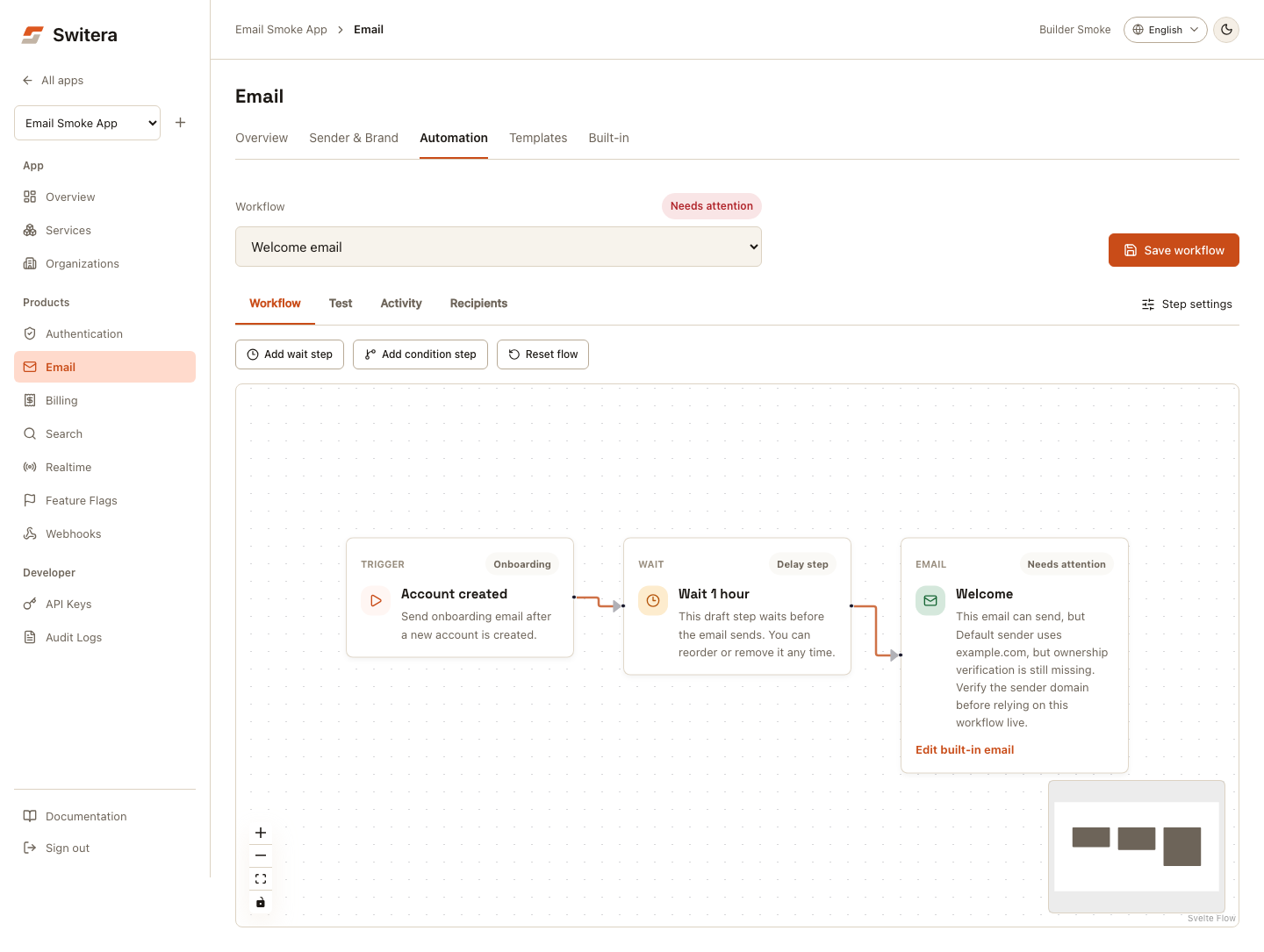
The URL includes the selected workflow, so you can bookmark it or share it with another authorized app administrator. Zoom and fit controls are at the bottom of the canvas. Step settings close with the close button or Escape. On mobile, the Step selector opens a step's settings without needing to zoom in on the canvas. The canvas refits when its available width changes.
Changing between Workflow, Test, Activity, and Recipients retains your draft. Save before switching to a different workflow or leaving Email.
:::note Branching limits Condition nodes and alternate paths can be saved in the draft. This does not enable arbitrary conditional execution: only the marked live path runs today. Sign-in and recovery workflows do not expose delays or pause controls when their runtime requires immediate delivery. :::
Send a workflow test
- Save your workflow changes.
- Select Test, enter an internal recipient, and choose a locale.
- Choose Send now to bypass saved delay timing, or Saved timing when the workflow supports it.
- Select Test workflow and check its result.
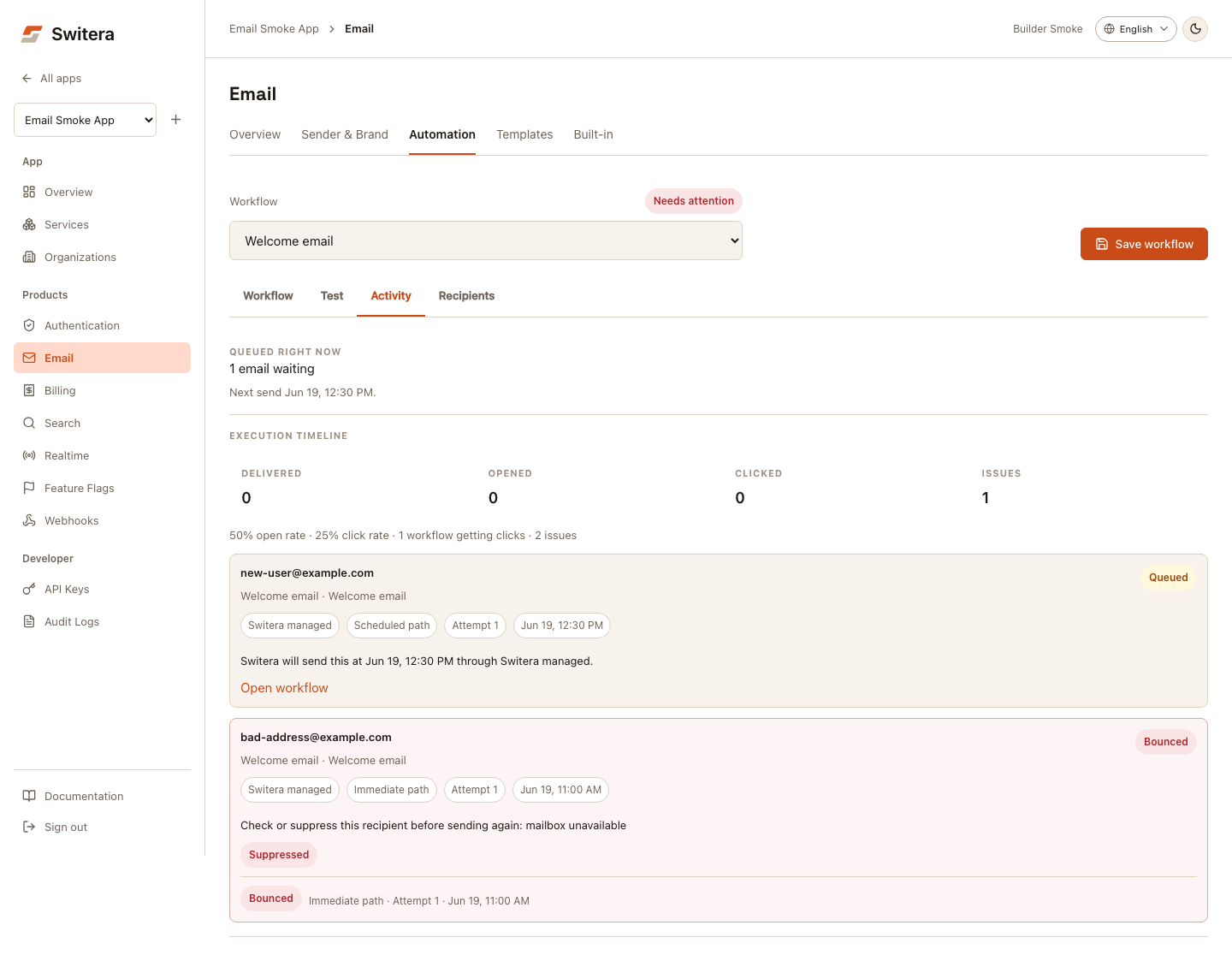
- Open Activity to review delivery events and queued messages.
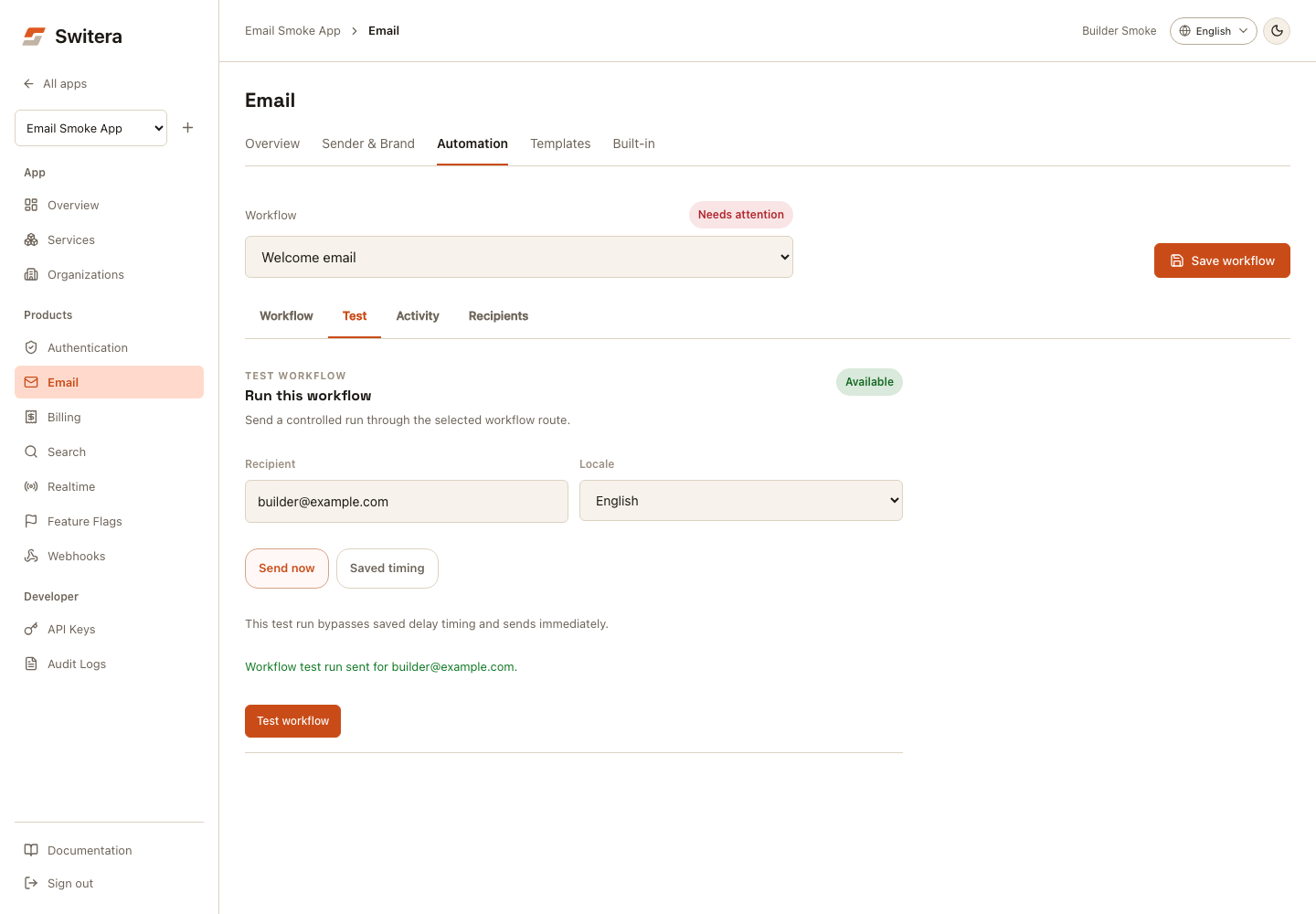
A workflow test is not an end-user sign-in. To verify a usable login code or recovery link, start the corresponding Auth flow in your app. Invitation workflows that use the live invitation template cannot use the managed test-run control; test those through an invitation.
Investigate delivery
Activity contains the selected workflow's execution timeline, queued sends, route, attempts, delivery and engagement events. Available recovery actions include resend and route tests. A resend is shown only when its payload is still retained and the delivery is eligible.
Recipients contains the app-wide suppression list, not just the selected workflow's recipients. Removing an entry allows future sends to that address; it does not resend a previous message. Review the reason before removing it.
Create or review invitation templates
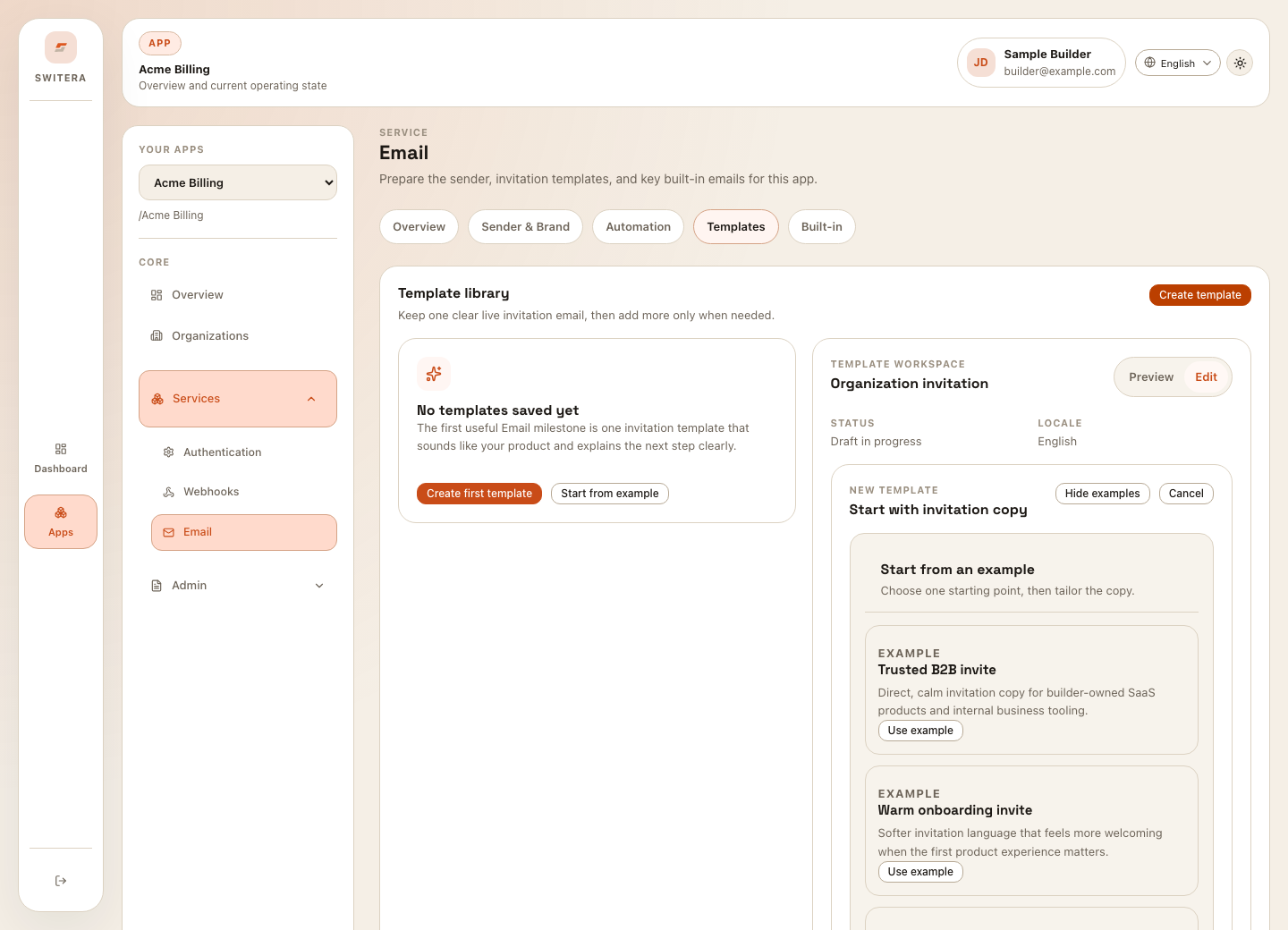
When creating a template:
- Open Products > Email.
- Open Templates.
- Select Create template or Start from example.
- Choose the email purpose and locale.
- Write a clear subject.
- Keep the body short and action-oriented.
- Preview with sample data.
- Save and send a test before using it for customers.
Review built-in messages
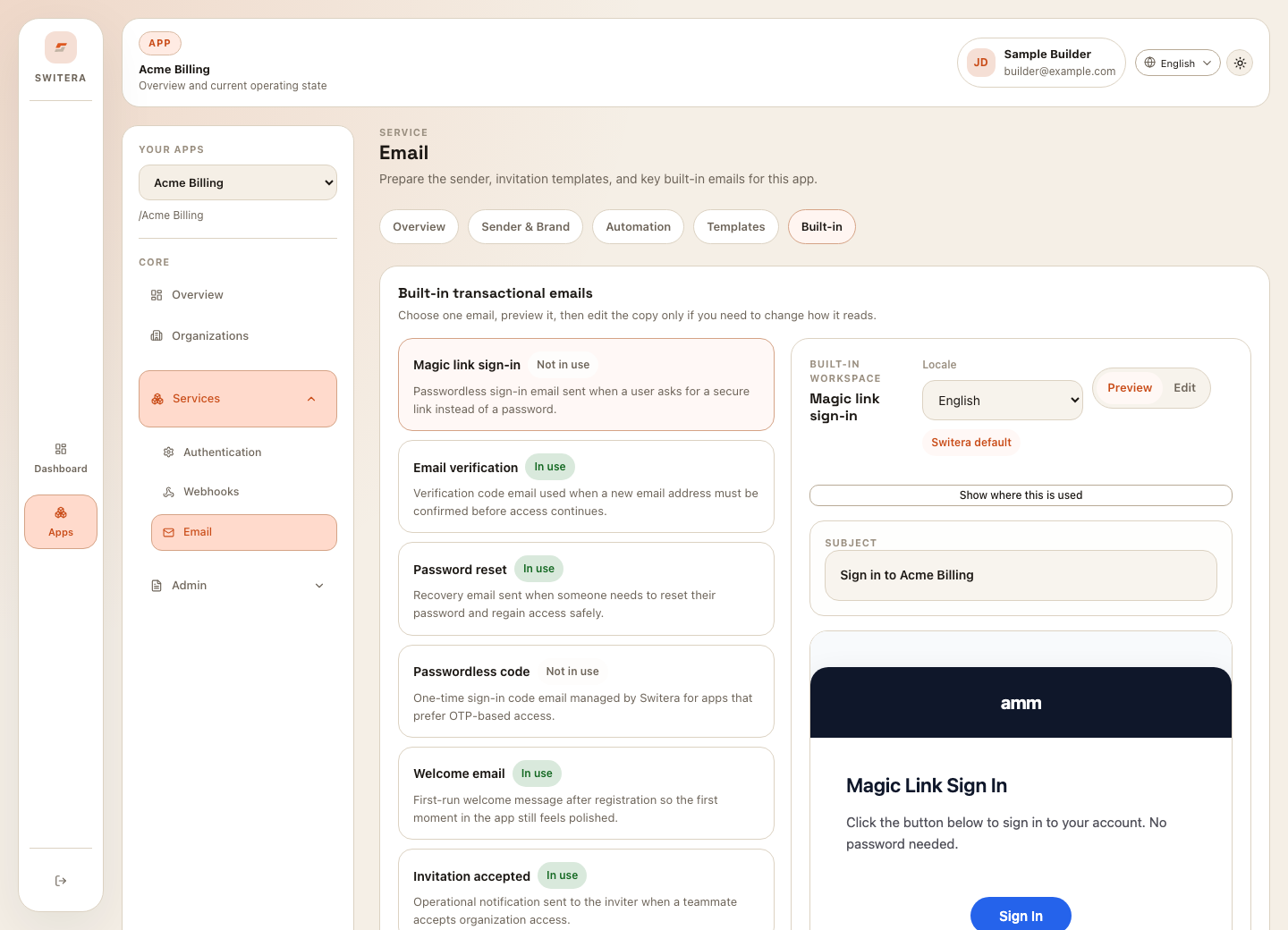
Review built-in emails for:
- verification
- password recovery
- passwordless or code sign-in
- invitation lifecycle
- security notifications
- account changes
- welcome or onboarding flows
Runtime checks before launch
Run these checks with test users:
- invitation reaches inbox
- recovery link arrives and expires correctly
- verification link works once
- reply-to goes to a monitored mailbox
- message renders on desktop and mobile email clients
- app name and organization name are recognizable
- links land on the intended hosted page or product callback
- failed sends are visible in Switera or your operational process
Writing email copy
Good Switera account emails are direct:
- explain why the user received the email
- name the app or organization when relevant
- put the primary action near the top
- avoid long marketing copy in transactional messages
- include a support path when the user might be confused
- avoid raw IDs, internal environment names, or implementation details
When to send tests
Send a test when:
- a sender domain changes
- the app name or logo changes
- the invitation template changes
- legal or support links change
- an Auth policy changes
- a new locale is added
Troubleshooting email flows
If users do not receive emails:
- Confirm the email address is correct.
- Check whether the user was invited or imported into the right app.
- Confirm the sender is configured.
- Review suppression, bounce, or block handling.
- Send a test to an internal mailbox.
- Check whether the hosted page link is expired.
- Review audit logs for recent email setting changes.
Related pages: