Email overview
The Email service controls how your app sends product and account messages. It covers sender identity, provider routes, templates, workflow timing, built-in transactional emails, suppressions, and delivery runtime.
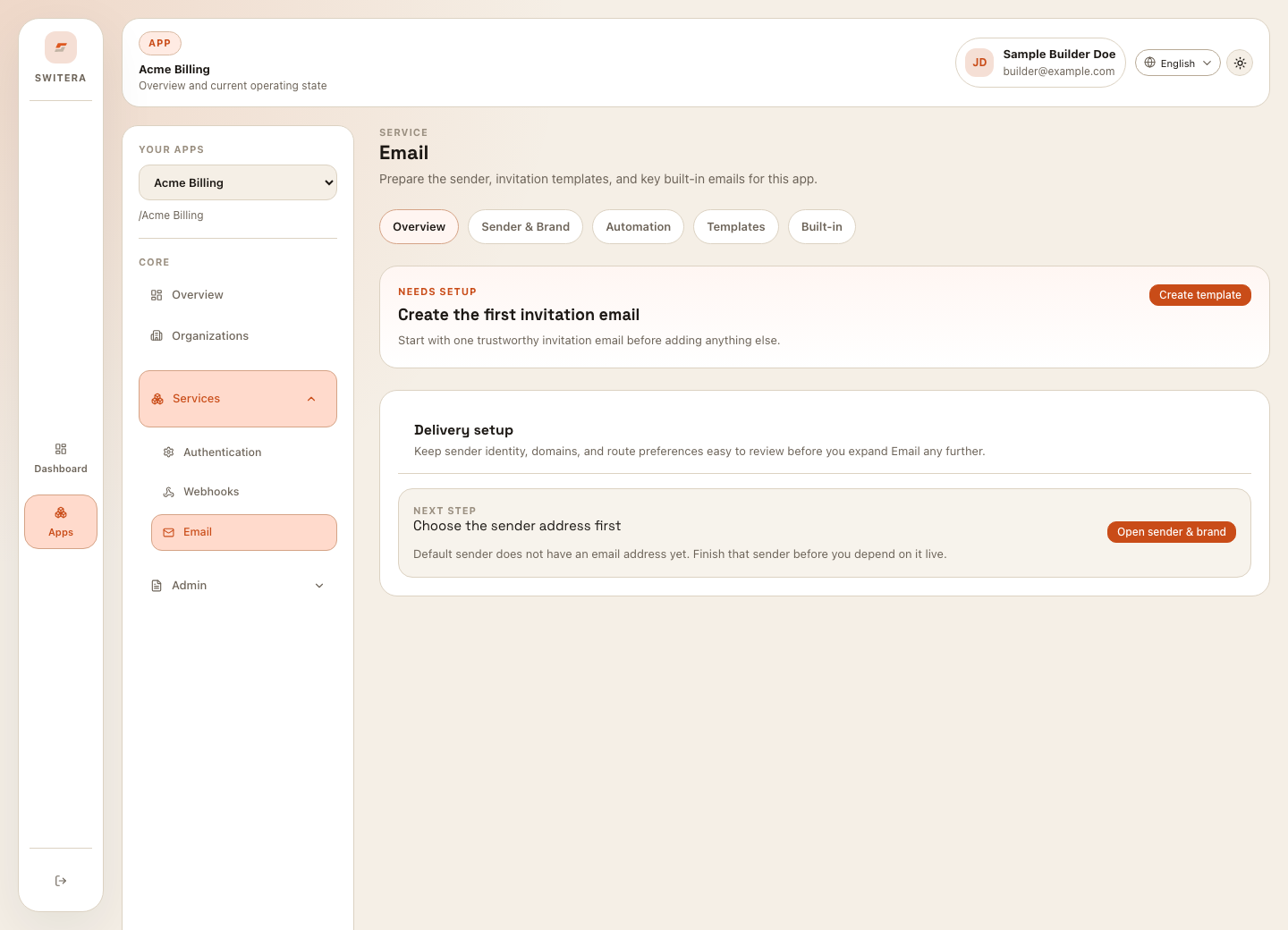
Email areas
| Area | Use it for |
|---|---|
| Overview | Readiness, delivery health, and next actions. |
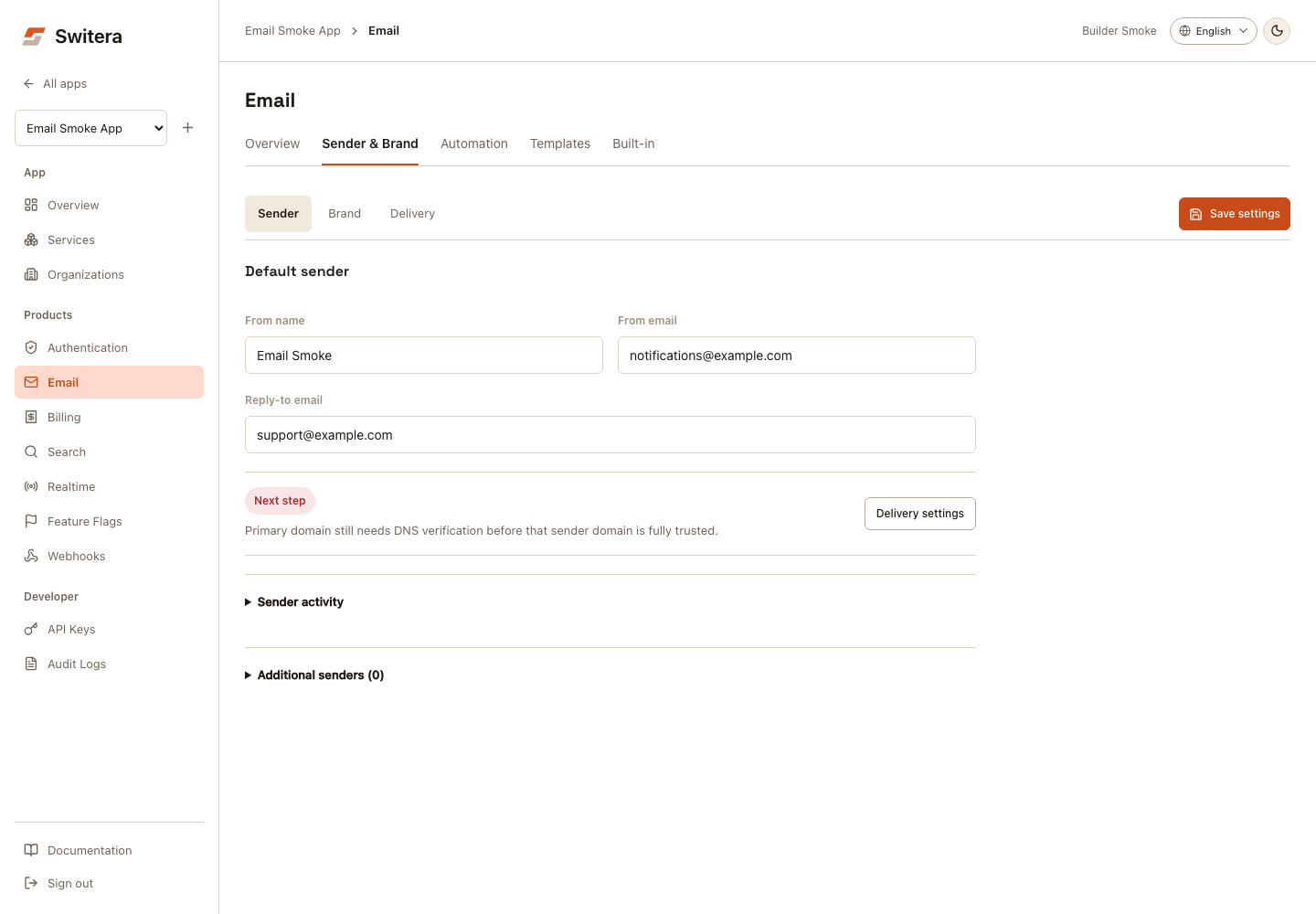
| Sender & Brand | Separate Sender, Brand and Delivery views for identity, appearance, domains and test sends. |
| Automation | Workflow timing and built-in message sequences. |
| Templates | Invitation templates and custom email copy. |
| Built-in | Account, security, verification, recovery, and lifecycle emails. |
First email setup
- Open Products > Email.
- Open Sender & Brand.
- In Sender, set the from name/address and reply-to behavior.
- In Brand, edit and preview the email shell, then select Save settings.
- In Delivery, review the route and domain records and test saved delivery settings.
- Open Templates and create or review the invitation template.
- Open Built-in and review account/security emails.
- Open Automation and check when each message sends.
- Send test messages to a monitored mailbox before inviting users.
Generate integration recipes
The Email overview includes an Integration recipes panel for backend smoke checks and runtime monitoring. Use it after you create an app API key and before you invite real users.
The panel generates:
.env.exampleentries for the app ID, server-side API key, monitored test recipient, workflow key, built-in email kind, and locale- a server-side smoke route or job that runs a sender route test, a workflow test-run, and a built-in preview send
- a runtime monitor that reads
/api/v1/apps/{appId}/email/runtimeand highlights failed, bounced, suppressed, complained, or retrying messages
Supported launch stacks are SvelteKit endpoints, Next.js route handlers, Express APIs, Go jobs, and Python jobs. Keep the app API key server-side only. Do not call Email smoke or runtime endpoints directly from browser code.
Runtime monitoring
The runtime view helps answer:
- was the message rendered?
- was it queued?
- did it send?
- did it bounce or get marked as spam?
- is the recipient suppressed?
- can the message be resent?
- which workflow produced the message?
Launch checklist
- sender identity is recognizable
- reply-to behavior is intentional
- invitation template is clear
- verification and recovery emails work
- built-in emails match product tone
- automation timing is reviewed
- test sends reach a monitored mailbox
- bounced or suppressed recipients are reviewed
Use email carefully
Email is user-visible and reputation-sensitive. Before launch:
- use a verified sender domain when available
- avoid misleading sender names
- keep templates short and clear
- test every locale you enable
- review suppressions and bounced recipients
- avoid sending bulk messages from an untested route
Related pages: